Open the dashboard
After a preview starts through the CLI or MCP, run this in another terminal:
previewhost dashboardThe command opens your default browser. Keep its terminal running while you use the dashboard. Closing the page or stopping this command does not stop your previews.
The dashboard lists automatic project owners and data retained after clean owner shutdown. Deleted worktrees can still have retained data. Standalone serve instances and embedded runtimes do not appear automatically.
It does not start owners or grant execution permissions.
Find the right preview
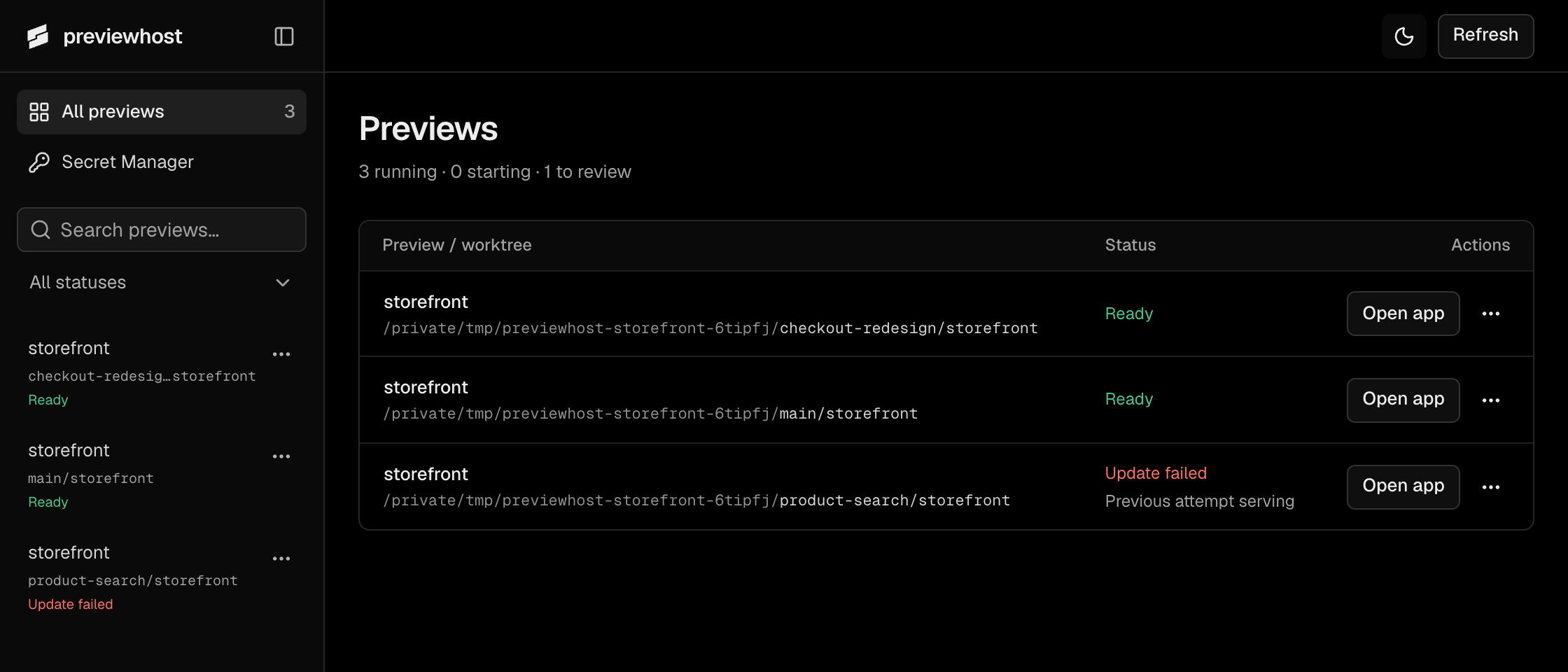
Use search and the status filter to narrow the list. Active previews appear first. Each row has its own action menu. Use the source path to distinguish worktrees. Open app opens the serving attempt, even if a later update failed.
Inspect services and updates
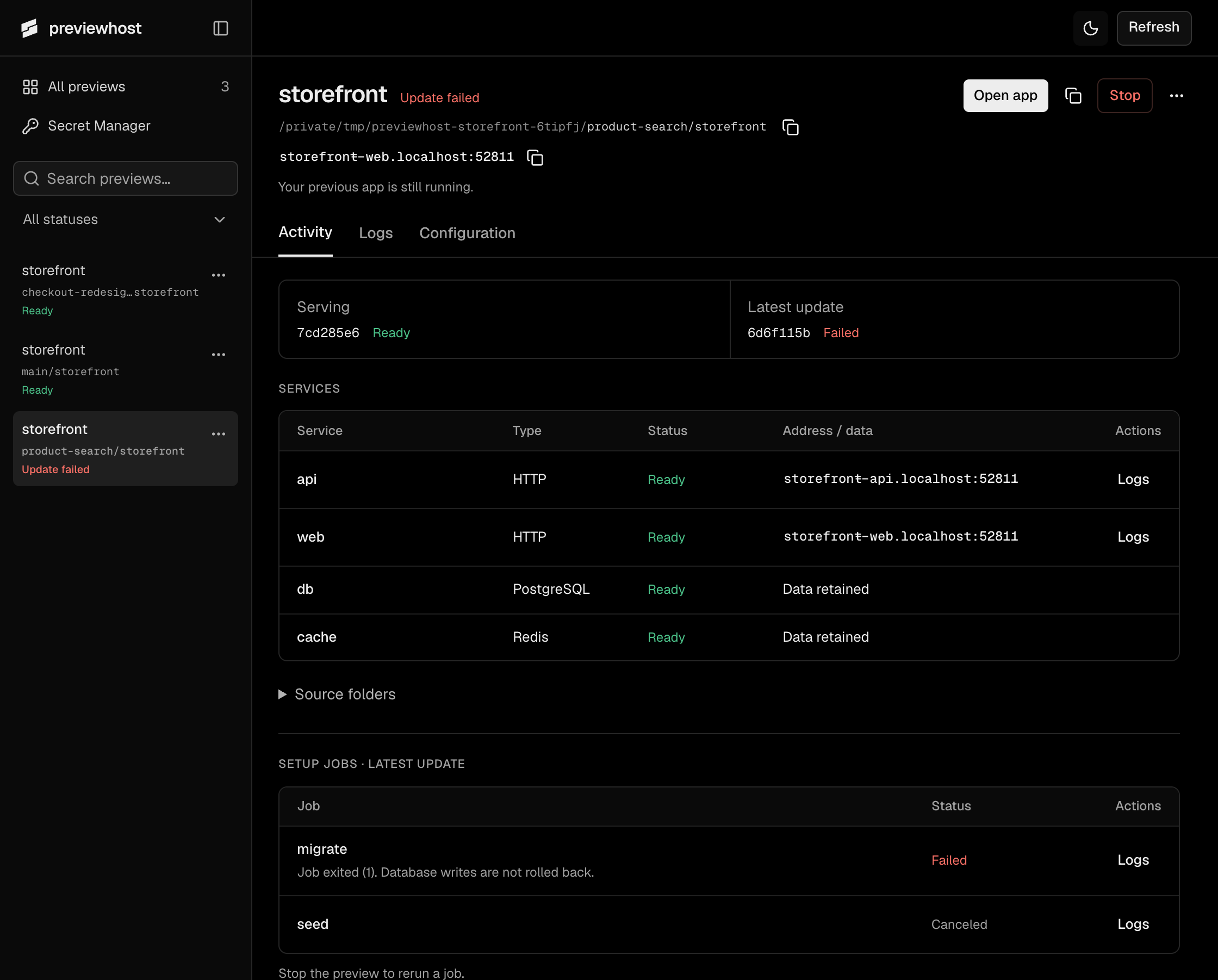
Open a preview's Activity tab to see services, setup jobs, and available recovery actions. Serving identifies the active application. Latest update identifies the replacement attempt.
| What you need | Action and consequence |
|---|---|
| Diagnose a failure | Open the failed job's Logs, or choose its attempt in the Logs tab. |
| Abandon a pending update | Cancel update leaves the previous application running. |
| Stop the preview | Stop ends owned processes and retains managed data. |
| Start after stop | Start preview uses retained configuration and current source. Its URL can change. |
| Retry a failed initial start | Retry start reruns that attempt after you fix its cause. |
| Start with fresh managed data | In the preview menu, Reset data names the databases before confirmation, then starts the preview again. |
| Delete data without restarting | After stop, Delete data removes the selected managed databases. Deletion cannot be undone. |
| Clear an old entry | Remove entry requires no remaining work, managed data, or incomplete cleanup. Sources and saved secrets remain. |
| Check an unavailable owner | Recheck status retries the connection. Remove entry explains blockers and requires confirmation that application processes stopped. |
Start and retry do not reload preview.yaml. To apply file changes, use CLI or MCP start/replace with the updated file.
Retry start does not open private setup. Complete any required secret approval and owner unlock before retrying.
Removing the last entry closes an empty automatic owner and ends its secret approvals.
Offline entries contain no restart configuration. Start them again through the CLI or MCP.
See setup jobs for explicit reruns and reset behavior.
Read logs
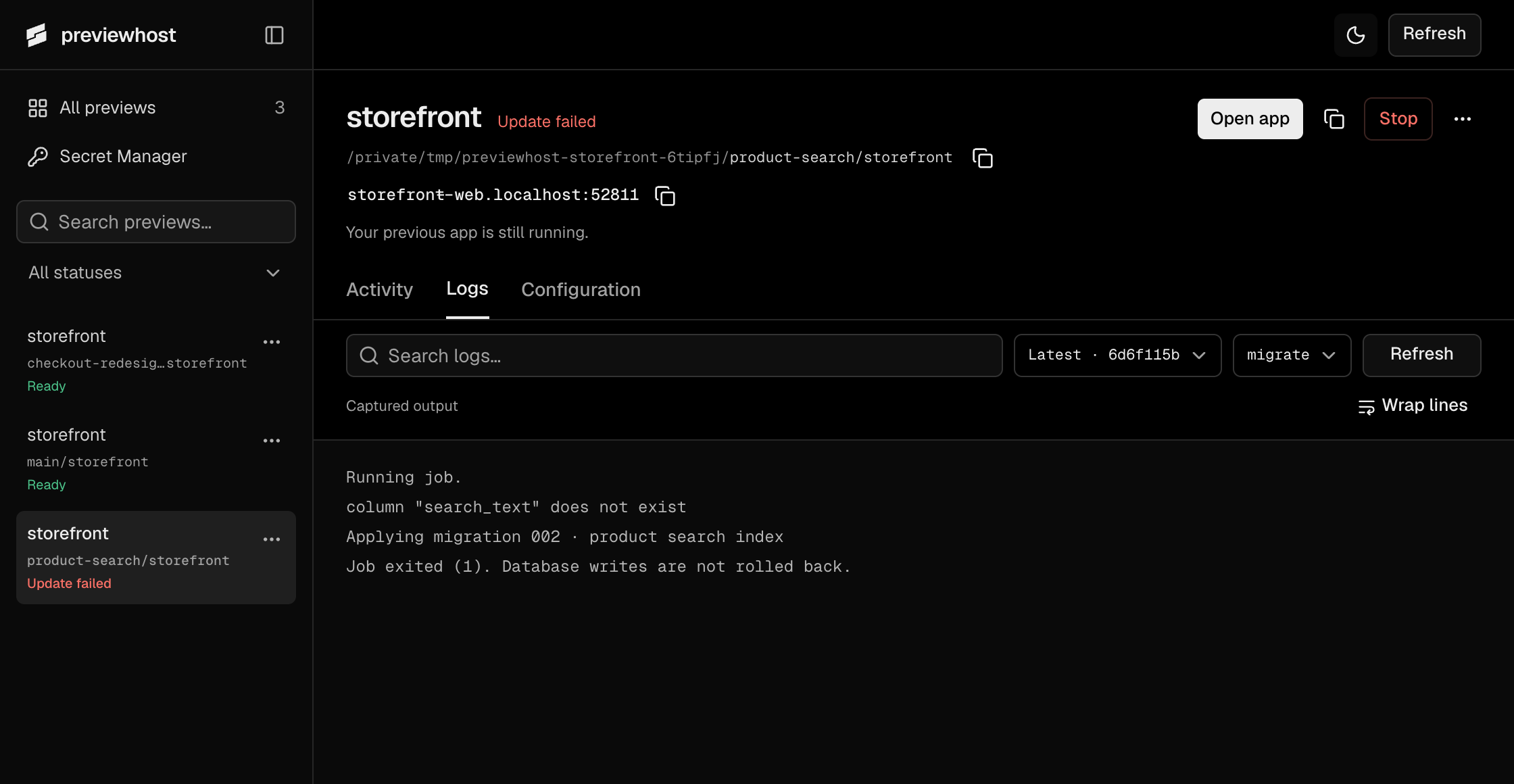
Choose the attempt before comparing output. A failed replacement and a serving app have separate logs. Then select a service or job, or use All output. Logs are bounded tails, not a permanent archive.
Save configuration and manage secrets
In Configuration, Save as preview.yaml writes the selected attempt's recipe to the project root.
Saving fails if preview.yaml or preview.yml already exists. It does not change the running application.
Secret references remain references. Stored values do not appear in this view.
Secret Manager creates or unlocks the dashboard’s keystore session, then lists references for editing. It also offers automatic unlock controls on macOS. Project owners unlock separately through private setup. Open private form handles missing values and access approval. See Secrets before changing a value shared across projects.